Image Compressor
Reduce image file size with quality and dimension controls. all in your browser.
Interactive tool
What is image compression?
Compression reduces file size, usually by resizing dimensions and applying stronger JPEG/WebP compression. Smaller files load faster on websites and take less cloud storage.
How to use
- 1Pick an image (JPEG, PNG, or WebP).
- 2Adjust max dimension and quality / target size.
- 3Compress and download the result.
Key features
Resize + recompress
browser image compression tunes quality for your size goals.
Web worker
Heavy work runs off the main thread when supported.
Private
Images stay on your device.
Why compress images?
Large phone photos can be multiple megabytes, too heavy for blogs, forms, and chat. Compression keeps visuals acceptable while cutting bandwidth.
Common use cases
- Prepare hero images for landing pages
- Shrink attachments for email
- Batch optimize before uploading to slow hosts
Resize before you compress
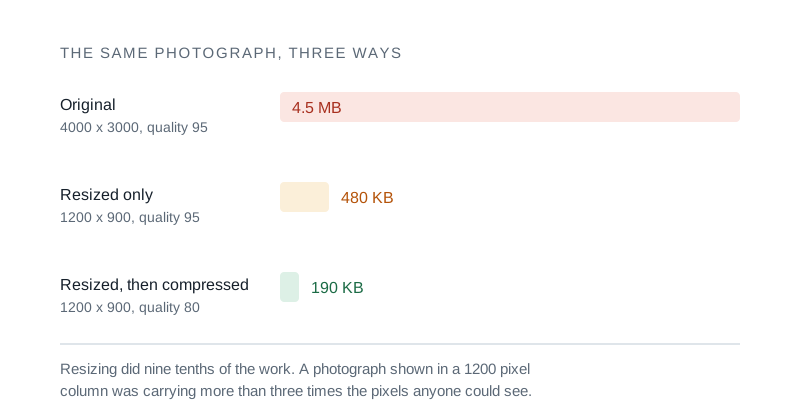
- The largest saving usually has nothing to do with the quality slider. A photograph straight off a phone is often 4000 pixels wide, and if it will be displayed in a 1200 pixel column then three quarters of those pixels are being stored, transferred and decoded for nothing.
- Reduce the dimensions to what will actually be displayed first, then compress. The two together get far smaller than either alone, and the visible result is better than aggressive compression at full size.
Choosing a quality setting
- Between 70 and 85 is usually indistinguishable from the original on a photograph, and that is where most of the useful saving is. Below about 60 the artefacts around high contrast edges start to show, particularly around text and fine detail.
- Quality settings are not comparable between formats. JPEG quality 80 and WebP quality 80 are different amounts of compression, and WebP generally holds up better at the same number.
- Compression is lossy and cumulative. Compressing an already compressed image again compounds the loss, so always work from the original where you still have it.
Tips & best practices
PNG vs JPEG
Photos compress as JPEG/WebP; screenshots with flat color may stay sharper as PNG at lower dimensions.
Start at quality 80
On a photograph it is usually indistinguishable from the original and captures most of the saving. Step down only if you have a size target to hit.
Never recompress a compressed file
The loss compounds. Work from the original wherever you still have it, because each pass through a lossy encoder removes detail the next one cannot restore.
Watch the edges, not the middle
Compression artefacts appear first around high contrast boundaries and text. If a setting looks fine on a flat sky, check it on a caption before trusting it.
WebP for anything on the web
It is smaller than JPEG at the same visible quality and supports transparency. Keep JPEG only when something downstream will not accept WebP.
Screenshots are not photographs
An image with text or sharp lines should stay PNG or WebP. JPEG handles exactly that content worst, and the softening does not come back.
Privacy & security
Compression runs locally. Your image is not uploaded to Zap.Tools.
Related tools
- Background Remover
Remove solid or green-screen backgrounds with chroma keying. tolerance and feather in your browser. Sample key from a pixel or choose a color.
Image Tools
- Image Resizer
Resize images by exact pixels or percentage with optional aspect ratio lock.
Image Tools
- Image Format Converter
Convert images between PNG, JPEG, and WebP with quality control. in your browser.
Image Tools
- Image Cropper
Crop, rotate, and flip images with aspect ratio presets. Supports PNG, JPEG, and WEBP output with adjustable quality
Image Tools
- EXIF Metadata Remover
Strip EXIF, GPS, and other hidden metadata from photos before sharing them online: lossless for JPEG, batch zip download
Image Tools
- PDF Compress
Shrink PDF file size by repacking and optimizing structure. runs locally in your browser.
PDF Tools
Frequently Asked Questions
Is image compression private?
Yes. Compression uses browser-image-compression locally without uploading to Zap.Tools.
Will EXIF metadata be kept?
Re-encoded output may strip some metadata depending on browser and codec.
What formats are supported?
Common raster types such as JPEG, PNG, and WebP work best.
Why is output sometimes JPG?
The compressor may output JPEG when optimizing photos for smaller size.
Can I compress huge images?
Very large images need more RAM; lower max dimensions if the tab becomes slow.