Background Remover
Remove solid or green-screen backgrounds with chroma keying. tolerance and feather in your browser. Sample key from a pixel or choose a color.
Interactive tool
Chroma key background removal
This tool treats pixels similar to a "key" color as transparent. It works best on studio shots, green screens, or logos on a flat solid backdrop. For busy natural backgrounds, use dedicated AI matting services instead.
How to use
- 1Upload an image.
- 2Use the color picker for the background, or leave default to sample the top-left pixel.
- 3Raise tolerance until the backdrop disappears; add feather to soften edges.
- 4Download the transparent PNG.
Key features
Custom key color
Eyedropper style hex input or auto sample from the corner.
Tolerance + feather
Balance clean removal against eating into the subject.
Private
Runs with Canvas locally. No Zap.Tools upload.
Why chroma key?
When backgrounds are uniform, chroma keying is fast, predictable, and does not require multi hundred MB ML downloads in the browser.
Common use cases
- Green screen thumbnails
- Logo knockouts on white
- Product shots on gray seamless
What chroma key removes, and what it does not
- This tool works by colour: you pick a key colour and everything close enough to it becomes transparent. That is reliable on a flat studio background or a green screen, and on product shots taken against plain white or black.
- It is not a subject detection model. On a photograph taken in a room, against a bookshelf or outdoors, there is no single colour to key out and the result will be poor. Those cases need a model based remover, and it is more honest to say so than to let you waste time.
- The upside of the simple approach is that it runs entirely on your machine, instantly, on any size of image, with no upload and no per image credit.
Getting a clean edge
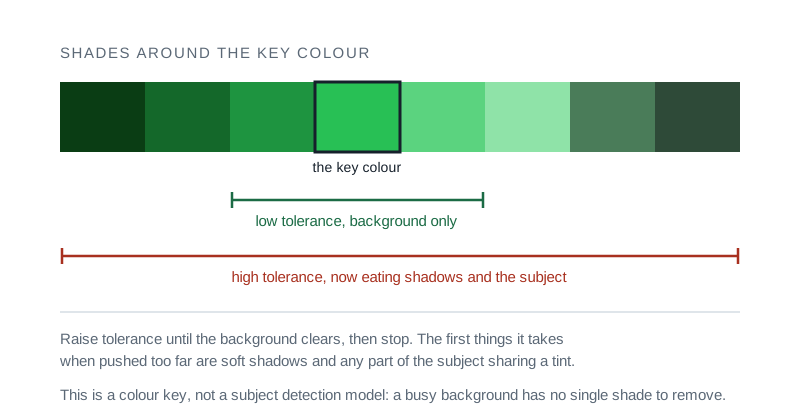
- Start with tolerance low and raise it until the background is gone. Too high and it starts eating the subject, usually beginning with shadows and any part of the subject that shares a tint with the background.
- Feathering softens the boundary by a pixel or two. Without it a keyed edge looks cut out with scissors; with too much the subject looks like it is glowing.
- The single biggest factor is the original photograph. A background lit evenly and separately from the subject keys almost perfectly. One with the subject casting a shadow onto it never fully will, whatever the settings.
Tips & best practices
Hair and shadows
Semi transparent shadows may need lower tolerance or manual touch up in an editor.
Shoot against a colour the subject does not wear
The classic green screen failure is a green shirt. Any flat colour works, so pick one that appears nowhere on the subject.
Light the background separately
A background lit evenly and apart from the subject keys almost perfectly. One the subject casts a shadow onto never fully will, whatever the tolerance.
Raise tolerance slowly
Increase until the background clears, then stop. Push further and it starts eating shadows and any part of the subject sharing a tint with the key.
Feather by a pixel or two
Without feathering the edge looks cut out with scissors. With too much the subject appears to glow. A small amount is almost always right.
Export PNG, not JPG
JPEG has no transparency, so saving a keyed image as JPG fills the background straight back in, usually with black.
Privacy & security
Processing uses Canvas in your browser. Your image is not sent to Zap.Tools.
Related tools
- Image Compressor
Reduce image file size with quality and dimension controls. all in your browser.
Image Tools
- Image Resizer
Resize images by exact pixels or percentage with optional aspect ratio lock.
Image Tools
- Image Format Converter
Convert images between PNG, JPEG, and WebP with quality control. in your browser.
Image Tools
- Image Cropper
Crop, rotate, and flip images with aspect ratio presets. Supports PNG, JPEG, and WEBP output with adjustable quality
Image Tools
- EXIF Metadata Remover
Strip EXIF, GPS, and other hidden metadata from photos before sharing them online: lossless for JPEG, batch zip download
Image Tools
- PDF to Image
Convert PDF pages to PNG or JPG images using pdf.js. rendered locally in your browser.
PDF Tools
Frequently Asked Questions
Is this AI matting?
No. It is chroma keying: pixels near your key color become transparent. Use it when the backdrop is an even solid or green screen.
Does my image upload to Zap.Tools?
No. All pixels stay in your browser tab.
What output format do I get?
PNG with transparency is typical for cut-outs.
Can it fail?
Low-light/noisy images or complex scenes may get imperfect edges.
GPU required?
No GPU needed. This is a CPU pixel pass on the canvas.