PDF Compress
Shrink PDF file size by repacking and optimizing structure. runs locally in your browser.
Interactive tool
What does this PDF compressor do?
This tool rebuilds your PDF with pdf lib and enables object streams, a lossless structure optimization that often reduces file size, especially for PDFs produced by multiple tools or scanners. It is not the same as aggressive image recompression (which can reduce quality).
How to use
- 1Upload one PDF file.
- 2Click Compress PDF.
- 3Download the optimized file and compare size in your downloads folder.
Key features
Lossless structure optimization
Rebuilds the PDF with modern object streams where supported.
Private
Your file never leaves the browser.
Before / after size
See original and output byte counts after processing.
Why compress PDFs?
Smaller PDFs are faster to email, upload, and open on mobile. Structural optimization is a safe first step before considering lossy downsampling of embedded images.
Common use cases
- Reduce size of merged PDF exports
- Trim bloated scanner output
- Prepare attachments for upload limits
Limitations
Password protected files may not load. Heavily image based PDFs may need dedicated image downsampling for large gains.
What actually makes a PDF large
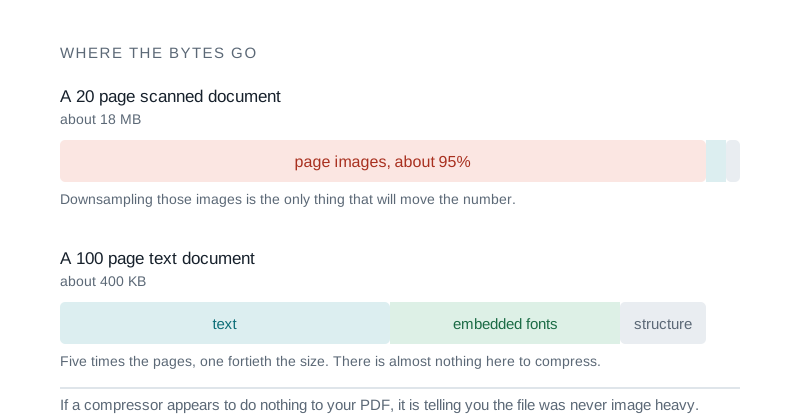
- Almost always images. A scanned page is a photograph of paper, and a 300 DPI colour scan of A4 is roughly eight megapixels before compression. Twenty of those is a very large file, and no amount of font subsetting will change that.
- Text and vector graphics are tiny by comparison. A hundred page text document is often smaller than a single scanned page.
- So the useful question is not how to compress a PDF in general, but whether this particular PDF is mostly scanned images. If it is, the win is in downsampling those images. If it is not, there is usually very little to recover.
Hitting a target size
- Work down in steps rather than jumping to the smallest setting. Scanned text stays readable at surprisingly low resolutions, but there is a threshold below which small type turns to mush and the document becomes useless.
- If a scan must reach a very small target, converting colour to greyscale often saves more than another quality drop, and it costs nothing on a page that is black type on white paper.
- A PDF that is already mostly text will barely shrink. If you are trying to compress one of those and nothing is happening, that is the reason, not a failure of the tool.
Tips & best practices
Check the result
Open the compressed PDF and verify all pages render before deleting the original.
Check whether it is a scan first
If the PDF is text and vectors there is very little to recover, and a compressor that appears to do nothing is telling you the truth about the file.
Try greyscale before dropping quality again
On black type against white paper, colour carries no information. Removing it often saves more than another quality step and costs nothing visible.
Step down, do not jump
Scanned text stays readable at surprisingly low resolutions, but there is a point where small type turns to mush. Approach it gradually and stop one step early.
Split before compressing a large document
If only some pages are scanned, extract those, compress them and merge back. Compressing the whole file punishes the pages that were already small.
Keep the original
Compression is one way. Once a scan has been downsampled the detail is gone, so archive the original before you optimise a copy for sharing.
Privacy & security
PDF compression runs locally in your browser. Files are not uploaded to Zap.Tools.
Related tools
- PDF Merge & Split
Merge multiple PDFs into one or split a PDF by pages. All processing runs in your browser.
PDF Tools
- PDF to Image
Convert PDF pages to PNG or JPG images using pdf.js. rendered locally in your browser.
PDF Tools
- PDF OCR / Make Searchable
Recognize text in scanned PDFs using Tesseract.js, then extract it as plain text or rebuild a searchable PDF with an invisible text layer. All client-side.
PDF Tools
- Image to PDF
Combine images (PNG, JPEG, WebP) into a single PDF. Drag-drop, reorder, rotate, choose page size and fit mode. All in your browser.
PDF Tools
- PDF Watermark
Add text or image watermarks to a PDF. Position in any zone or tile across the page, set rotation and opacity, target a page range. All client-side.
PDF Tools
- PDF Rotate & Reorder
Rotate, reorder, and delete pages in a PDF visually with thumbnails. Drag pages to reorder, click to rotate or remove
PDF Tools
Frequently Asked Questions
Will image quality stay the same?
This optimizer rebuilds PDF structure (lossless). Embedded images are not re-encoded, so visual quality is preserved.
Is my PDF uploaded?
No. Everything happens in your browser.
What if the file grows?
Some PDFs are already minimal; rebuilding may not shrink them. Try a different source export if size is still too large.
Do you support encrypted PDFs?
Password-protected PDFs must be unlocked first in another application.
Which browsers work best?
Current versions of Chrome, Edge, Firefox, and Safari on desktop.