PDF Merge & Split
Merge multiple PDFs into one or split a PDF by pages. All processing runs in your browser.
Interactive tool
0 file(s) selected
What is PDF merge and split?
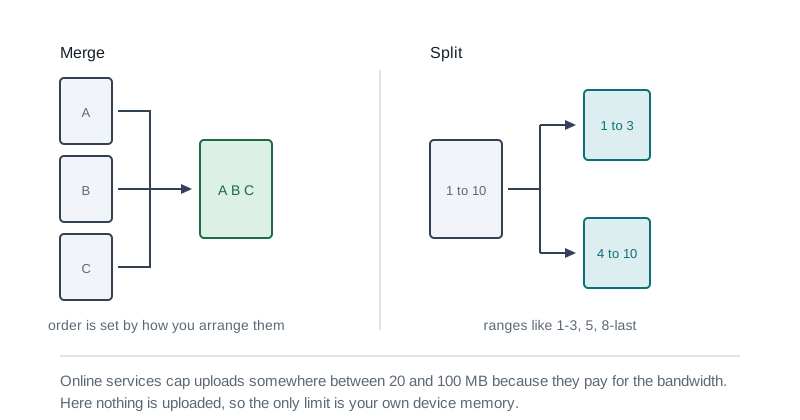
Merging combines multiple PDF documents into a single file. Splitting breaks one PDF into smaller files, either one file per page or custom page ranges. These are the most common PDF operations for sharing, archiving, and organizing documents.
How to use this tool
- 1Choose Merge to combine PDFs, or Split to extract pages.
- 2For merge: select two or more PDF files, then run merge.
- 3For split: select one PDF. Leave ranges empty to get one PDF per page, or enter ranges like 1-3,5.
- 4Download each output file. Files never leave your browser.
Key features
Merge unlimited PDFs
Combine multiple PDFs in order into a single document.
Split by page ranges
Use 1-based ranges (e.g. 1-3,7) or split every page automatically.
Private by design
Processing uses pdf-lib locally. No cloud upload.
Fast downloads
Download merged or split PDFs immediately after processing.
Why merge or split PDFs?
Merging is ideal for packets, reports, and combined submissions. Splitting helps you share only relevant pages, reduce attachment size, or separate chapters without installing desktop software.
Common use cases
- Combine invoices and receipts into one file
- Extract signature pages from a contract
- Split scanned multi-page PDFs for email limits
- Reorder content by merging exports from different tools
Page range syntax
- Ranges use commas: 1-3,5,8-10 (all numbers are 1-based page numbers).
- An empty range field with Split means: one PDF file per page.
Merging images into a PDF
- If the pages you want to combine are JPEGs or PNGs rather than PDFs, that is a different job, and the Image to PDF tool handles it: drop the images in, reorder them, pick a page size and export one document.
- You can also go the other way and combine both: convert the images to a PDF first, then merge that with the PDFs you already have.
Size limits, and why they are different here
- Online merge services cap uploads, commonly somewhere between 20 and 100 MB, because they are paying for the bandwidth and the processing. That cap is a business decision rather than a technical one.
- Here the only limit is your own device memory, since nothing is uploaded and the work happens in the tab. Very large documents can be slow because your processor is doing the work, but there is no arbitrary ceiling and no queue.
- The practical constraint on a phone is memory rather than file size. If a very large merge stalls, do it in two passes.
Tips & best practices
Order matters when merging
Files are combined in the order you select them (use your OS file picker order where possible).
Encrypted PDFs
Password-protected PDFs may fail to load until decrypted in another tool.
Large files
Very large PDFs consume memory; close other heavy tabs for best results.
Privacy & security
PDF merge and split runs entirely in your browser using pdf-lib. Files are not uploaded to Zap.Tools servers.
Related tools
- PDF Extract / Delete Pages
Keep or drop pages from a PDF. Pick visually with thumbnails or type a page range like 1-3, 5, 7-9. Lossless and 100% browser-side.
PDF Tools
- Image to PDF
Combine images (PNG, JPEG, WebP) into a single PDF. Drag-drop, reorder, rotate, choose page size and fit mode. All in your browser.
PDF Tools
- PDF to Text
Extract every word from a PDF as plain text or structured JSON. 100% browser-side using pdfjs-dist. No upload, no signup.
PDF Tools
- PDF Password Remover
Remove the password from a PDF you have access to. Works entirely in your browser: your password and document never leave your device.
PDF Tools
- PDF Header & Footer
Add headers and footers to a PDF. Six independent slots (header L/C/R + footer L/C/R), text or image, opacity, page range. All in your browser.
PDF Tools
- Video to GIF Converter
Turn any mp4, webm, mov, or mkv into a high-quality animated GIF: fully in your browser via ffmpeg.wasm. Pick a time range, FPS, width, and dither; we generate an optimised palette in a single click.
Video Tools
Frequently Asked Questions
Is merging PDFs free?
Yes. Merge and split as many PDFs as your device can handle, with no account and no server upload.
Do you store my PDFs?
No. Files are processed in your browser memory and discarded when you close the tab.
How do page ranges work?
Use 1-based numbers. Example: 1-3,5 creates one PDF with pages 1 to 3 and another with page 5 only. Leave the field empty to split into one PDF per page.
Can I merge more than two PDFs?
Yes. Select multiple PDFs in the file picker; they are combined in order.
Why did my PDF fail?
Some encrypted or corrupted PDFs cannot be read. Try removing a password or re-exporting the PDF from its source app.