Text Compare & Diff
Compare two text files and see the differences with line by line, word by word, and side by side views
Interactive tool
What is a Text Compare Tool?
A text compare tool (also called diff tool) highlights the differences between two pieces of text. It shows what has been added, removed, or changed between two versions of a document. This tool is essential for reviewing changes, comparing file versions, and identifying modifications in text documents.
How to Use This Text Compare Tool
- 1Paste or type your original text in the left input field
- 2Paste or type the modified text in the right input field
- 3Select your preferred comparison mode (line by line, word by word, or character by character)
- 4Choose between unified or split view for easier visualization
- 5Review the highlighted differences with color coded additions (green), deletions (red), and unchanged content
- 6Copy the comparison results or export them for documentation
Key features
Multiple Comparison Modes
Compare text line by line, word by word, or character by character
Side by Side View
View original and modified text side by side for easier comparison
Unified Diff View
Traditional unified diff format showing all changes in one view
Ignore Options
Optionally ignore whitespace or case differences
Statistics Dashboard
See total additions, deletions, and modifications at a glance
Color Coded Changes
Green for additions, red for deletions, clear visual highlighting
100% Private
All comparisons happen in your browser, no server upload
Free Forever
No registration, no limits, completely free
Why Use a Text Comparison Tool?
Text comparison tools are invaluable for developers, writers, and anyone who needs to track changes between document versions. They save time by automatically highlighting differences instead of manually scanning through text. Whether you are reviewing code changes, comparing document versions, or verifying data accuracy, a diff tool provides instant visual feedback on what has changed.
Common use cases
- Reviewing code changes before committing to version control
- Comparing document revisions to track edits
- Verifying configuration file changes in deployments
- Checking differences between API responses
- Comparing translated text versions
- Auditing data migrations or transformations
- Reviewing contract or legal document modifications
- Analyzing log file differences for debugging
Understanding Diff Modes
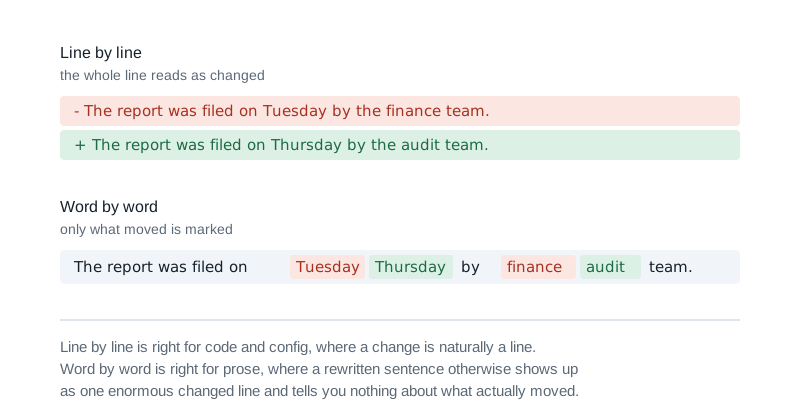
Line by line comparison is best for structured text like code or configuration files. Word by word mode helps identify small changes within lines, ideal for prose and documentation. Character by character mode shows the most granular differences, useful for precise change tracking.
When to Ignore Whitespace or Case
- Ignore whitespace when formatting changes are not important
- Ignore case when comparing user input or case insensitive data
- Keep both enabled for code comparison where precision matters
- Use ignore options to reduce noise in comparisons
Compared with Beyond Compare and desktop diff tools
- A desktop tool like Beyond Compare or Meld does things a browser cannot: comparing whole folder trees, diffing binary files, merging three way conflicts and hooking into version control. If that is the job, use one.
- What a web diff is better at is the small case. Two versions of a paragraph, a config file a colleague pasted into chat, a response body that changed between two runs. There is nothing to install, and for a one off comparison the install is most of the cost.
- The difference that matters here is where the text goes. A pasted contract clause or an API response with customer data in it should not be uploaded to a server to be compared, and with this tool it is not: the diff is computed in your browser.
Diffing code, JSON and prose
- Line by line is the right view for code and config, where a change is naturally a line and the surrounding lines give the context.
- Word by word is better for prose, where a rewritten sentence shows up as one enormous changed line in a line based view and tells you nothing about what actually moved.
- For JSON specifically, format both sides first. Two documents can be semantically identical and diff as completely different if one is minified, and formatting first turns a meaningless diff into a readable one.
Tips & best practices
Choose the right comparison mode
Use line by line for code and structured text, word by word for documents, and character by character for precise tracking.
Use ignore whitespace for cleaner results
Enable ignore whitespace when comparing code with different formatting styles to focus on actual content changes.
Side by side for large changes
Use split view when comparing files with many differences to see both versions clearly.
Check statistics for quick overview
Look at the statistics panel to quickly understand the scope of changes before diving into details.
Copy sections individually
You can copy specific sections of the diff to document changes or share specific modifications.
Privacy & security
This text comparison tool runs entirely in your web browser. Your text is never uploaded to any server, stored in any database, or transmitted anywhere. All comparisons happen locally on your device. It is 100% private and secure.
Frequently asked questions
What is a text comparison tool?
+
A text comparison tool (also called diff tool) compares two pieces of text and highlights the differences between them. It shows what has been added, removed, or modified, making it easy to review changes in documents, code, or any text content.
What are the different comparison modes?
+
This tool offers three comparison modes: Line by line comparison for structured text like code, word by word comparison for documents and prose, and character by character comparison for the most granular level of detail. Choose the mode that best fits your content type.
What is the difference between unified and split view?
+
Split view shows the original and modified text side by side, making it easy to see both versions at once. Unified view shows all changes in a single column with additions and deletions marked inline, similar to traditional diff output from version control systems.
When should I use ignore whitespace or ignore case?
+
Use ignore whitespace when comparing code with different formatting styles or indentation. Use ignore case when comparing text where letter casing is not important. These options help reduce noise and focus on meaningful content changes.
Is my text data safe when using this tool?
+
Yes, this text comparison tool runs entirely in your web browser. Your text is never uploaded to any server or stored anywhere. All comparisons happen locally on your device, ensuring complete privacy and security.
Can I export or share the comparison results?
+
Yes, you can copy the diff results to your clipboard or download them as a text file. The exported format includes all changes with clear markers for additions, deletions, and unchanged content.
Is this like Beyond Compare?
+
For a single pair of texts, yes, and with nothing to install. Beyond Compare and Meld do things a browser cannot, such as comparing folder trees, diffing binaries and three way merges. For two versions of a paragraph or a config file, a web diff is quicker and the text never leaves your machine.
Can I compare code or JSON with it?
+
Yes. Use the line by line view for code and config, where a change is naturally a line. For JSON, format both sides first: two documents can be identical in meaning and diff as completely different if one of them is minified.
Related tools
- Regex Tester
Test and debug regular expressions with pattern matching, highlighting, and explanations
Text Tools
- Lorem Ipsum Generator
Generate Lorem Ipsum placeholder text with custom paragraph, word, and byte counts
Text Tools
- Text Case Converter
Convert text between different cases: uppercase, lowercase, title case, camelCase, snake_case, and more
Text Tools
- Text Statistics Analyzer
Analyze text with keyword density, readability scores, sentence metrics, and reading time
Text Tools
- Text Deduplicator
Remove duplicate lines or words from text with options for case sensitivity, ordering, and trimming
Text Tools
- Video Format Converter
Convert mp4, webm, mkv, and mov videos to any of those targets: fully in your browser via ffmpeg.wasm. Pick the container; we auto-pair the right H.264 / VP9 / passthrough codec for maximum playback compatibility.
Video Tools